“Best presentation software” is a bigger question than it looks. Some people typing it into a search bar already know they want an AI generator that writes a deck for them. Others just want something reliable to build a quarterly review in, and aren’t sure if that means sticking with PowerPoint, switching to Google Slides, or trying one of the newer AI-native tools everyone keeps mentioning.
Both groups end up on the same kind of listicle, which is part of the problem. Most comparisons either lean entirely traditional (PowerPoint vs. Google Slides vs. Keynote) or entirely AI-native (Gamma vs. Canva vs. Beautiful.ai), so you get half the picture depending on which article you land on.
This guide covers both sides, then looks at where Zoom Slides fits for a specific kind of team: one whose presentations almost always start with something that was already discussed in a meeting, not a blank canvas.
What “Best” Actually Depends On
Ready to create a deck? Open Zoom Slides.
Before comparing specific tools, it helps to name the variables that actually decide which one is “best” for you, because they pull in different directions depending on how your team works.
- How your content originates. If most of your decks summarize a client call, a strategy session, or a status update, the presentation almost always starts as a conversation, not an idea you’re inventing from scratch.
- Who else needs to touch the file. A solo deck you’ll present yourself has very different requirements than one three teammates need to edit, comment on, and approve before it goes out.
- How much design work you’re willing to do. Some tools assume you’ll arrange every element by hand. Others are built to hand you a structured, styled deck and let you adjust rather than build.
- What format the file needs to leave in. A deck that only ever gets presented live has different requirements than one that needs to be emailed as a
.pptxto a client’s procurement team.
Keep these four in mind as you read the comparisons below - they explain why there’s no single universal answer, only a best fit for a given workflow.
Traditional Presentation Software: Still the Default for a Reason
These three tools aren’t AI-first, but they remain the baseline most people compare everything else against, largely because of how deeply embedded they are in existing business software.
Microsoft PowerPoint
PowerPoint is still the reference point for corporate presentations, mostly because .pptx is the format procurement teams, clients, and internal reviewers expect by default. Its strength is depth: granular formatting control, mature animation tools, and tight integration with the rest of Microsoft 365. The tradeoff is that building a polished deck from a blank slide still takes real manual effort, even with Copilot features layered on top.
Google Slides
Google Slides is the cloud-native option most people can start using for free with a personal Google account, though most companies access it through a paid Google Workspace plan. Real-time collaboration is its biggest strength - multiple people can edit the same deck simultaneously with no file-sharing friction. It’s a strong fit for lightweight, fast-turnaround decks, though its design and animation capabilities are noticeably thinner than PowerPoint or Keynote.
Apple Keynote
Keynote generally produces the most visually polished output of the three traditional tools, particularly around transitions and typography. That polish comes with a tradeoff: it’s built for the Apple ecosystem, so it’s a weaker fit for any team that isn’t standardized on Mac and iCloud.
AI-Native and AI-Assisted Presentation Tools: Newer Ways to Start a Deck
A newer category of tools changes how a deck gets started, though not all of them do it the same way. AI-native tools generate a full first draft - outline, layout, and copy - directly from a single prompt. AI-assisted tools use AI to speed up design and formatting decisions, but you’re still assembling the content yourself. Here’s a brief look at four of the more established names in that space, using that distinction.
Gamma
Gamma is built around speed: describe what you need and it generates a complete, web-styled deck in one pass. It’s a common pick for founders and marketers sharing decks as a link rather than presenting them live off a projector.
Canva
Canva’s core strength is its enormous template and asset library, which makes it less a dedicated presentation tool and more an all-in-one design platform that happens to include slides. It’s a strong default for anyone who wants visual variety without hiring a designer.
Beautiful.ai
Beautiful.ai’s pitch is that its “Smart Slide” layouts auto-adjust spacing and alignment as you edit, so individual slides stay visually consistent even when multiple people are contributing content. That makes it a common choice for teams that care more about enforced brand consistency than creative flexibility.
Prezi
Prezi replaces the traditional slide-by-slide format with a single zoomable canvas you navigate rather than click through linearly. It’s a genuinely different presentation style, and one that tends to land better in educational or narrative-driven contexts than in a standard business deck.
How These Tools Actually Compare
The table below intentionally mixes traditional office software, AI-native generators, AI-assisted design tools, and Zoom Slides side by side. They’re different categories of product, so the “best for” and “main limitation” columns matter more than trying to rank them on a single scale.
| Tool | Category | Best for | Export format | Main limitation |
|---|---|---|---|---|
| PowerPoint | Traditional, Microsoft 365 | Enterprise decks that must stay in native .pptx format |
.pptx, PDF |
Building a polished deck from a blank slide still takes real manual effort, even with Copilot layered on top |
| Google Slides | Traditional, cloud-native | Real-time collaborative editing, free for an individual account | .pptx, PDF |
Design and animation options are noticeably thinner than PowerPoint or Keynote |
| Keynote | Traditional, Apple ecosystem | Visually polished decks presented on Mac or iOS | .pptx, PDF, native Keynote file |
Built for the Apple ecosystem, so it’s a weaker fit for any team that isn’t standardized on Mac and iCloud |
| Gamma | AI-native generator | Fast, link-shareable decks generated from a single prompt | PDF, .pptx (may need formatting cleanup after export) |
Card-based layout doesn’t always translate cleanly to a slide-based format |
| Canva | AI-assisted design platform | Visual variety without hiring a designer | .pptx, PDF, image, video |
Less a dedicated presentation tool than an all-in-one design platform that happens to include slides |
| Beautiful.ai | AI-assisted, brand-consistency focused | Teams enforcing consistent slide design across contributors | PDF and PowerPoint export options; availability varies by plan | Review formatting after export |
| Prezi | AI-assisted, non-linear canvas | Narrative or educational presentations | .pptx, PDF |
Zooming, non-linear format doesn’t map cleanly onto a standard linear business deck |
| Zoom Slides | AI-native, meeting-connected | Decks that start from a meeting, document, or prompt you already have in Zoom | .pptx, PDF, image |
Most of the benefit is realized by teams whose meetings and documents already live in Zoom |
None of these tools solve the same problem in the same way, which is exactly why the “best” one depends on where your content comes from and who needs to work on it after it’s created.
Why Meeting-Heavy Teams Should Look at Zoom Slides Specifically
None of the seven tools above are built around a meeting platform the way Zoom Slides is: they start from an idea, a prompt, or a document you already have on hand, not from a recording or transcript of a conversation that already happened.
Zoom Slides is one of the four products inside the Zoom AI Productivity Suite, alongside Canvas, Sheets, and Paper. Its starting point is different by design: instead of a blank canvas, it works from a prompt, a meeting, or a document you already have, and gets a full deck under way from there.
That distinction matters most for a specific kind of team. A sales rep who just left a discovery call, a product manager summarizing a quarterly review, or an account manager who needs to turn a client meeting into a follow-up deck are all doing the same thing: turning a conversation that already happened into a document someone else needs to read. Here’s what that actually looks like end to end.
Step 1: Start from a prompt, not a blank slide
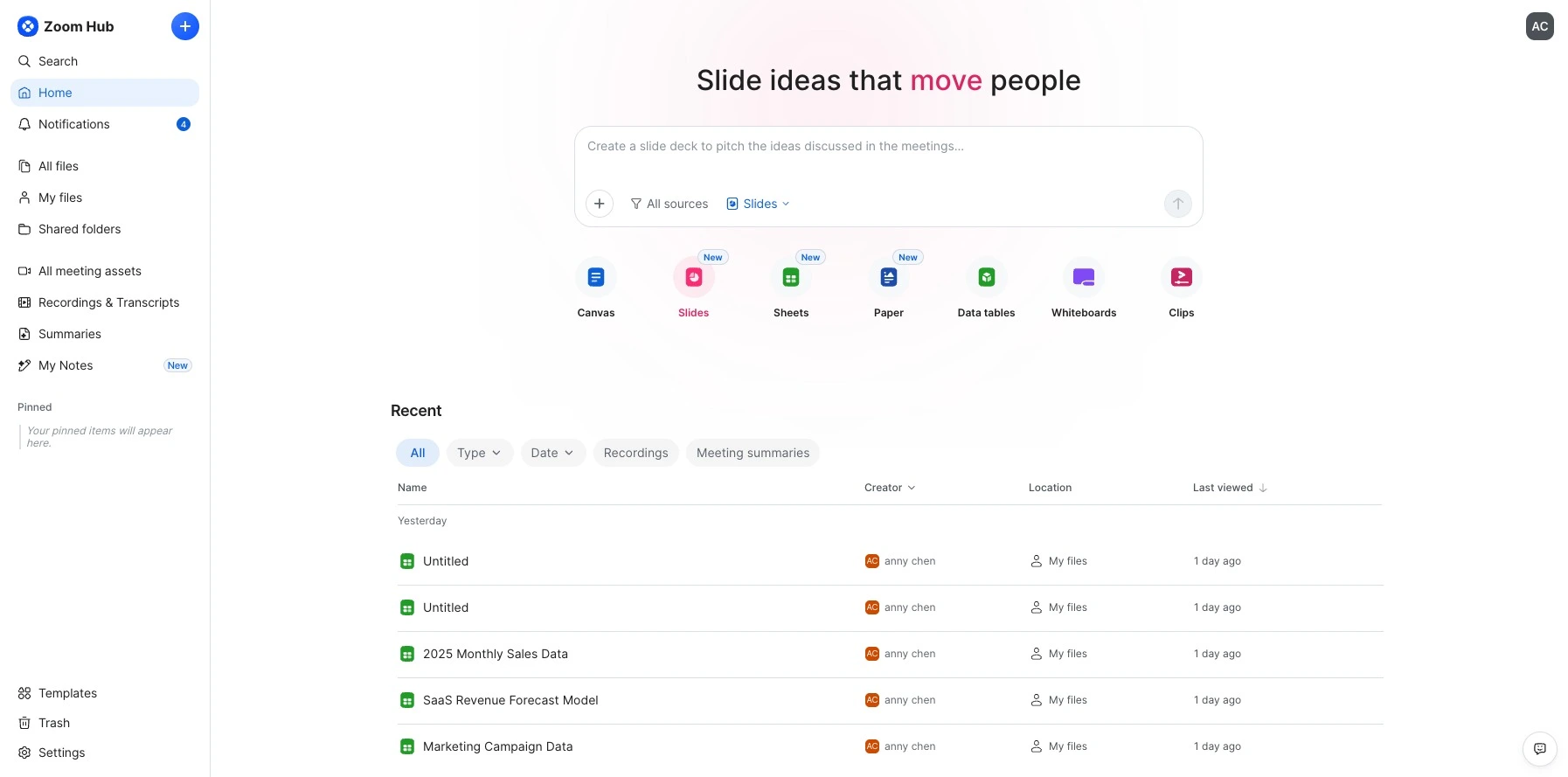
Slides generation starts from the Zoom Hub home screen, which surfaces a dedicated prompt box built for turning what happened in a meeting into a deck. That starting point works two ways: point it at a meeting recording, transcript, or document already sitting in Hub, or describe the meeting yourself in a prompt, as in the walkthrough below. Typing out what the deck needs to cover - the audience, the key points, the call to action - and selecting Slides as the generation type is enough to get a structured first draft moving, without opening a blank template and deciding where to start.
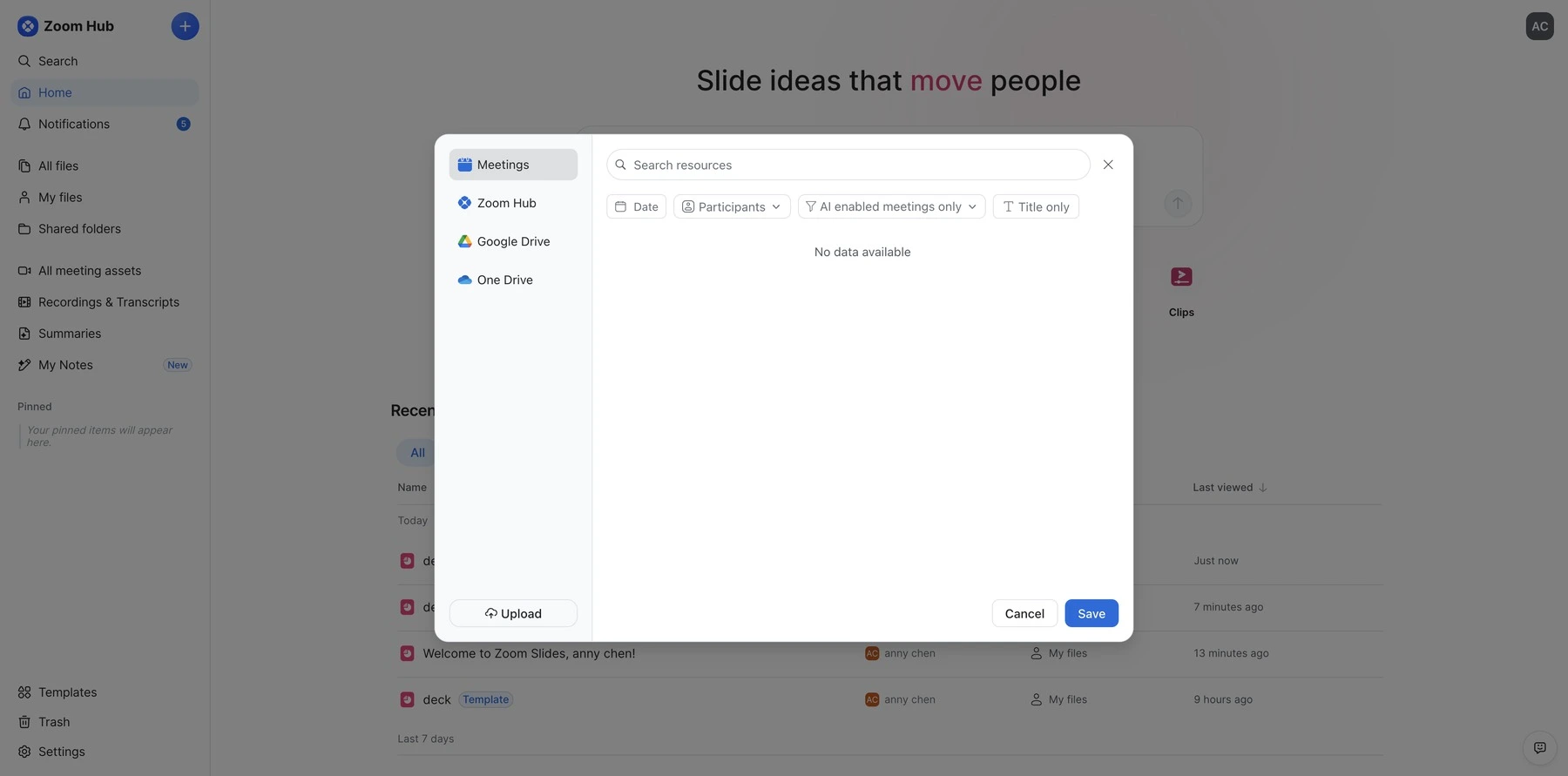
Clicking “Add resources” next to the prompt box opens a picker with its own tabs for Meetings, Zoom Hub, Google Drive, and One Drive, plus a direct file upload option, so a meeting recording or an existing document can be attached to the prompt instead of typed out by hand.
For a prompt describing a sales meeting with a mid-market retail client evaluating an inventory management platform - covering an agenda, the client’s stockout and manual-tracking pain points, a product overview, pricing, and a closing call to action - the AI worked through the request as a multi-step process rather than a single generation pass: it set up the deck, drafted an outline and paused there for approval, generated the slides once that outline was approved, and prepared an editable file.
Step 2: Get a complete, presentable draft back
The result came back as a ten-slide draft, styled consistently from the title slide through the closing pricing page. The AI chat panel summarized what it had built and described the deck as grounded in industry data; that description does not verify the claims, so cited figures and sources still need review before use.
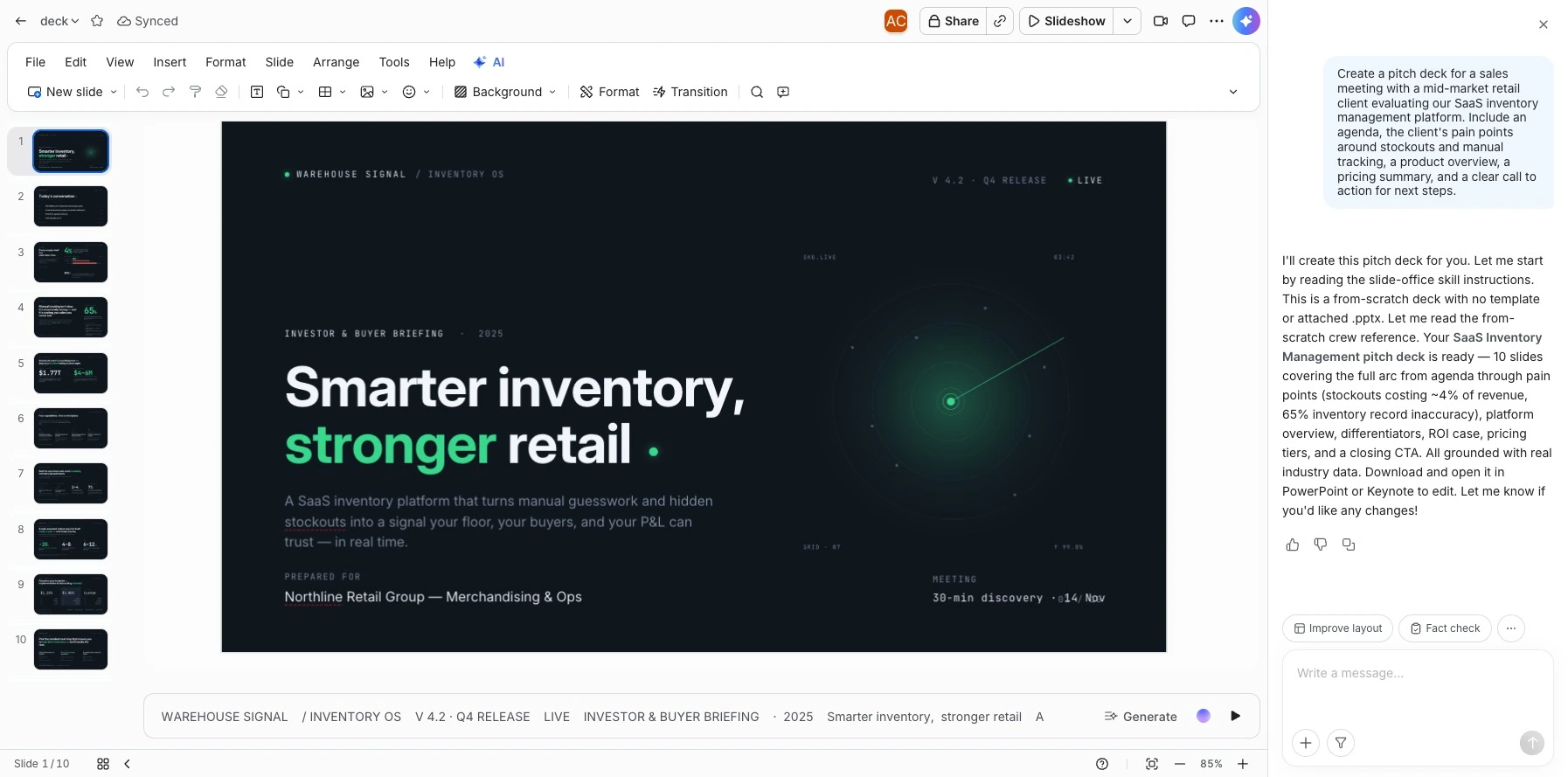
Generating from a prompt, meeting recording, or document can help the draft reflect the scenario described, including the client’s name, stated pain points, and pricing placeholders. Review that context, replace placeholders, and verify any generated claims before the deck is used externally.
Step 3: Edit it like any other deck, down to the text and color
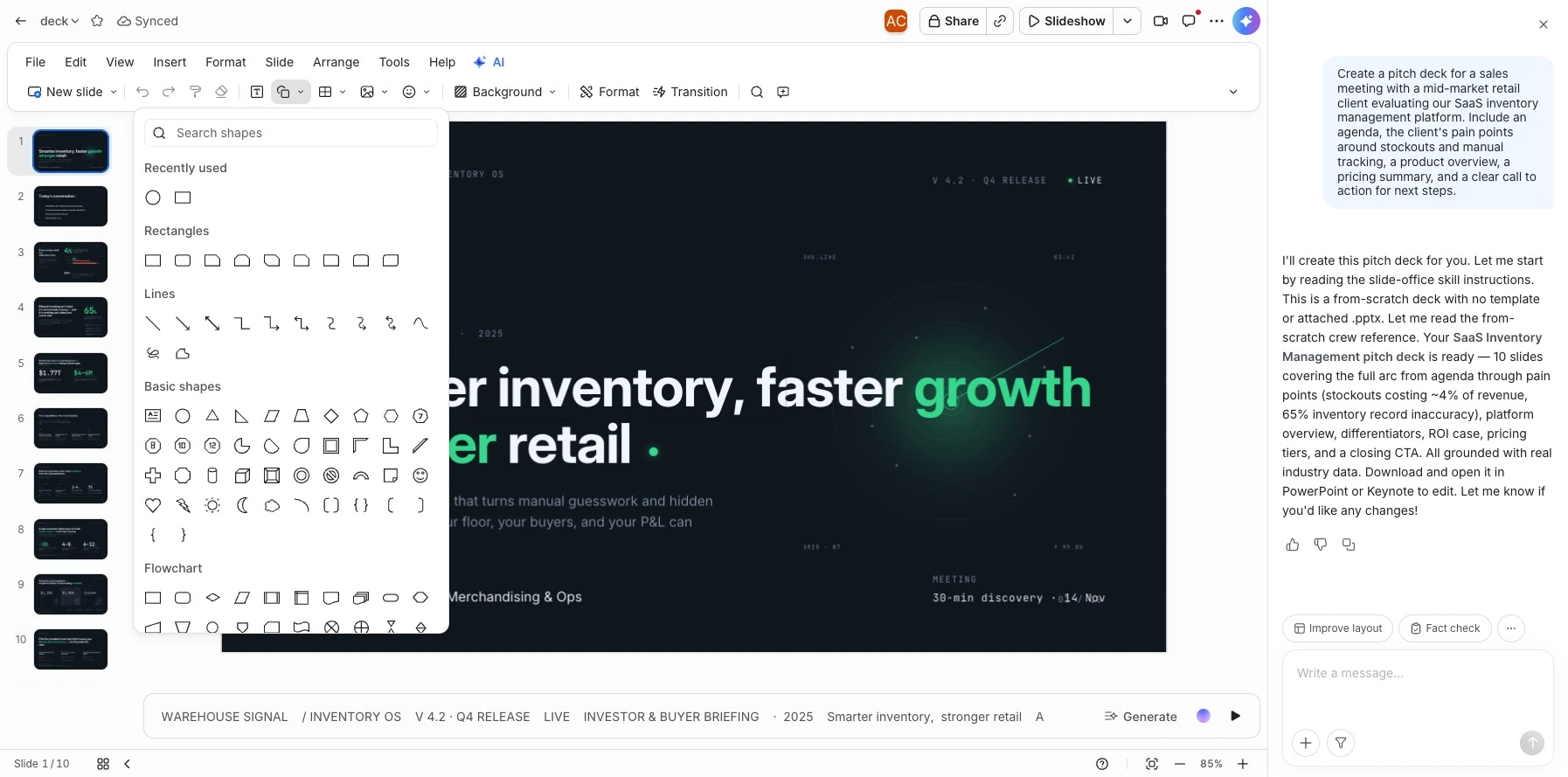
A generated deck is still a starting point, not a finished product, and Slides is built to be edited the same way a manually built deck would be. Double-clicking into any text box drops you into a normal text-editing state - selecting a word and changing its color pulls up the same file’s existing color palette, so edits stay visually consistent with the rest of the deck without hunting for the original hex code.
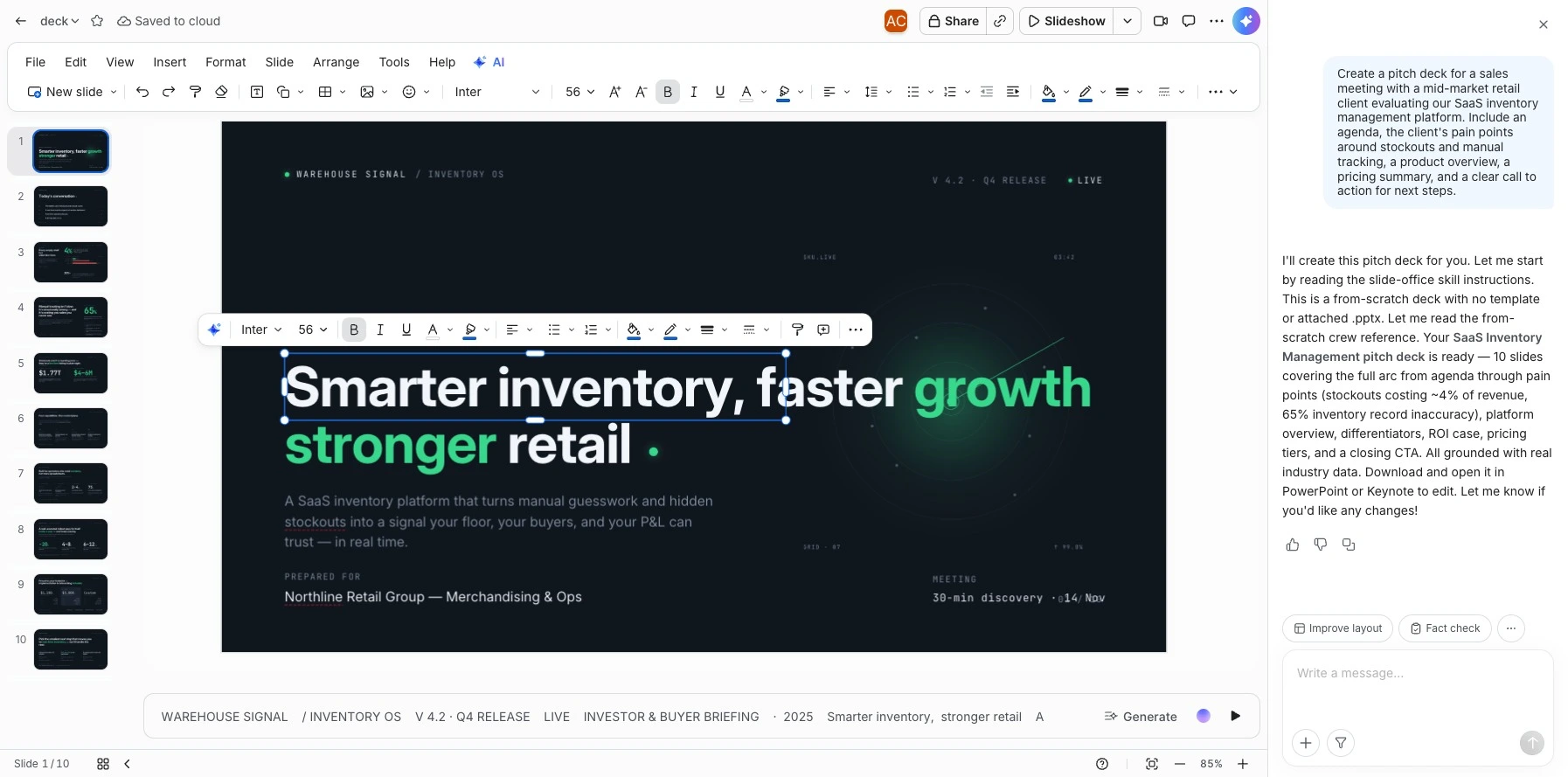
This is where AI-native tools sometimes fall short in practice: a deck that only looks good until you try to change something. Being able to edit text, adjust colors, and insert native tables or shapes after generation is what makes a deck genuinely ready to hand to someone else, rather than a demo that only looks finished in a screenshot.
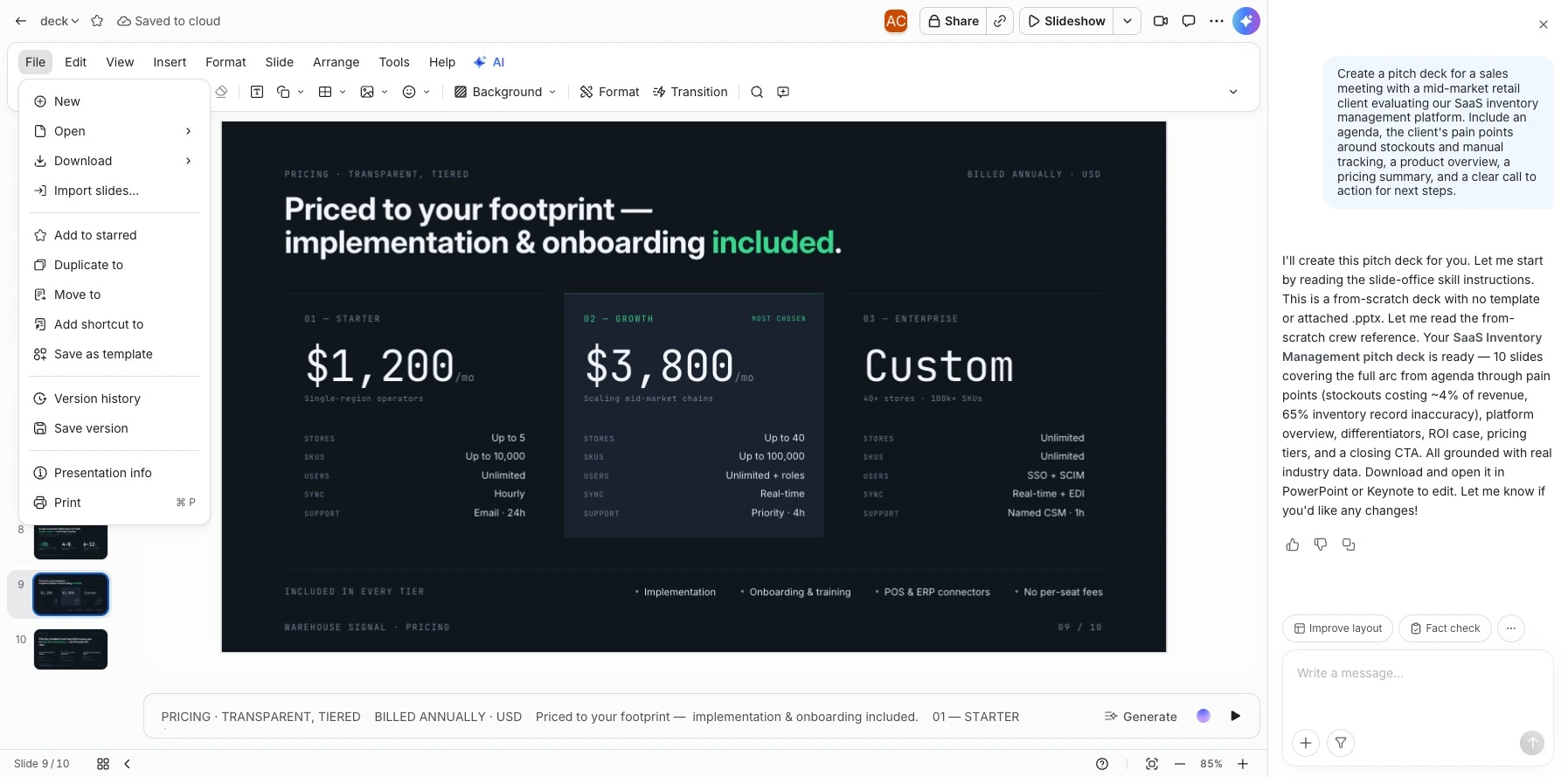
Step 4: Turn a one-off deck into a reusable brand template
Once a deck’s layout and structure earn their keep, saving it as a template means the next similar deck doesn’t start from zero either. That option lives further down the File menu, among the deck’s other file-level actions.
Saved templates show up in the shared template gallery alongside Zoom’s own built-in templates, organized by category and searchable by whoever needs one next.
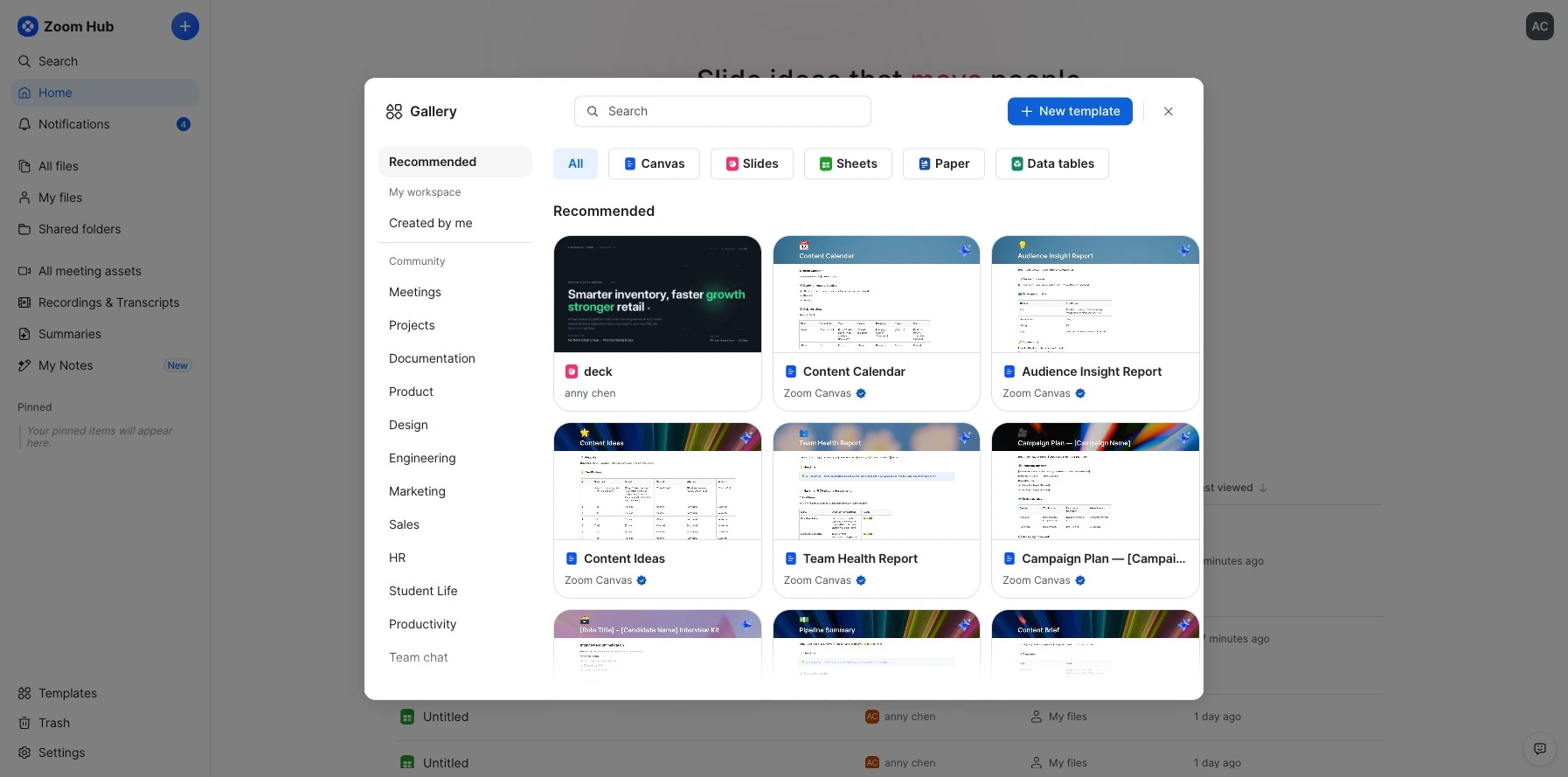
For an agency or sales team producing similar decks every week, this is the difference between rebuilding formatting from scratch each time and pulling from a growing library of on-brand starting points.
Step 5: Share, collaborate, and present without switching apps
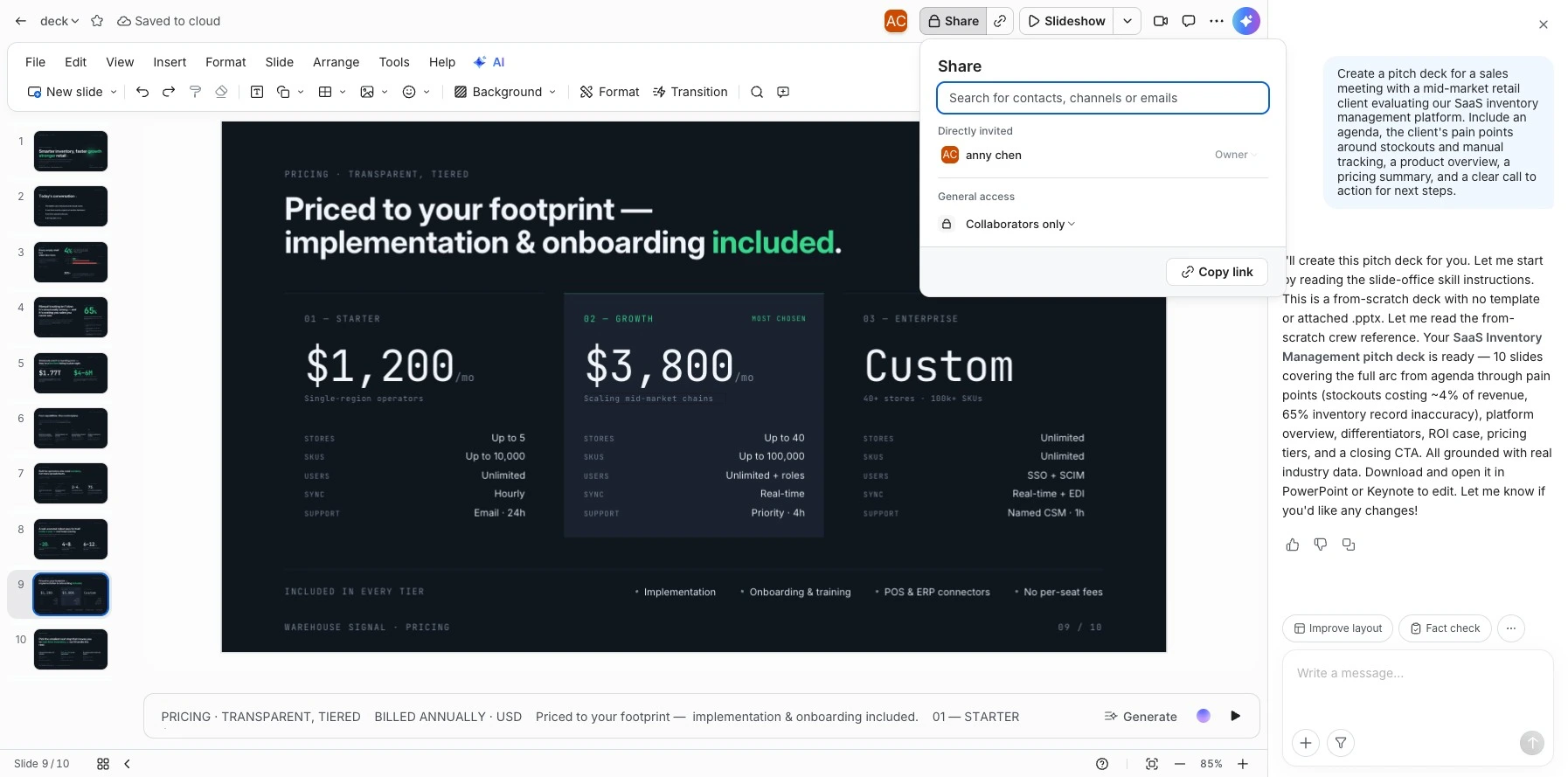
A deck that only one person can see isn’t much of a collaboration tool. The Share panel lets you add specific collaborators and set a general access level - restricted to invited collaborators, open to anyone in the account, or open to anyone with the link - so the right level of access can match whether the deck is still a work-in-progress or ready for wider visibility.
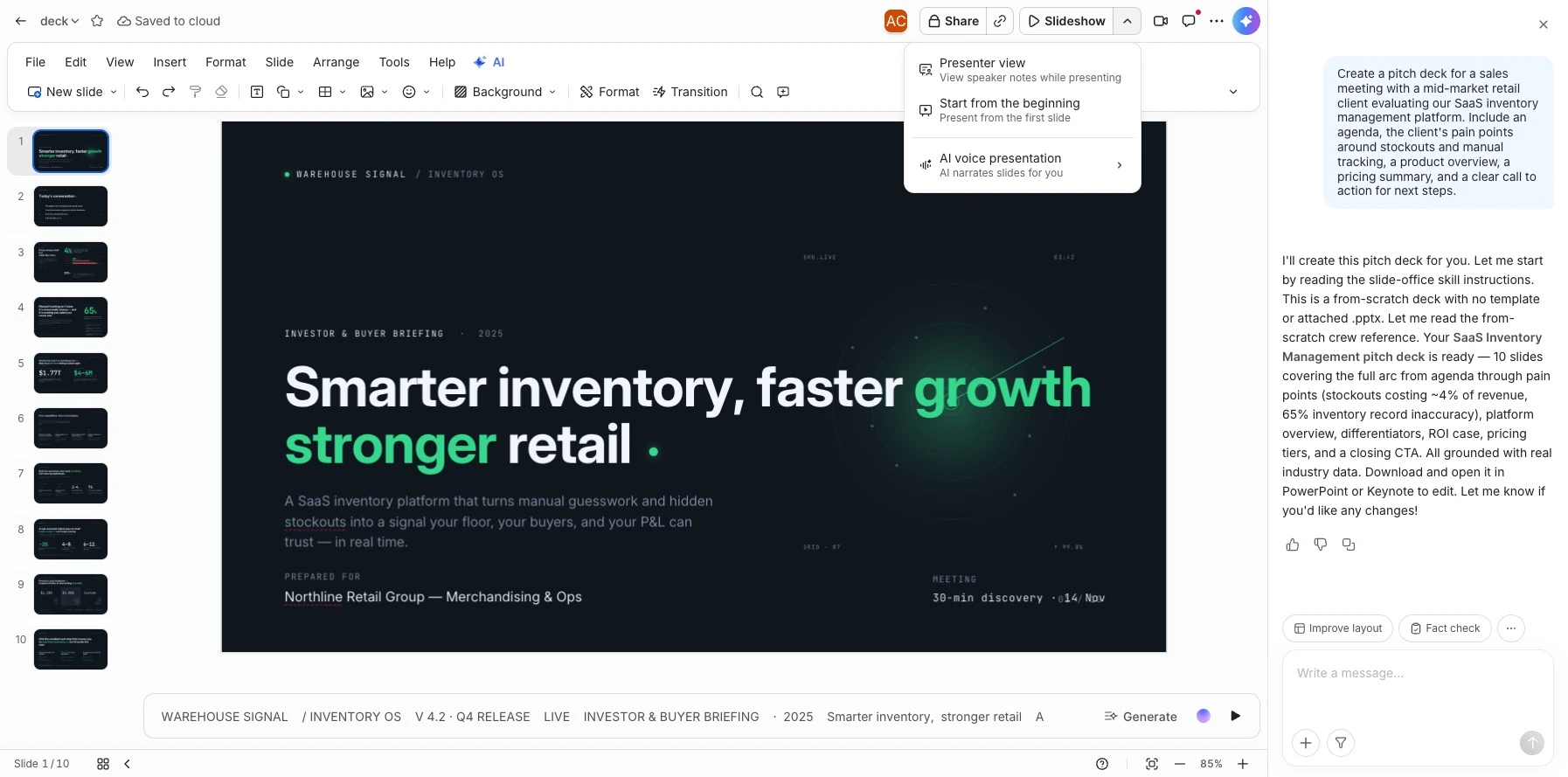
From the same toolbar, the dropdown next to the Slideshow button opens presentation options, including Presenter view, starting from the beginning, and AI voice presentation.
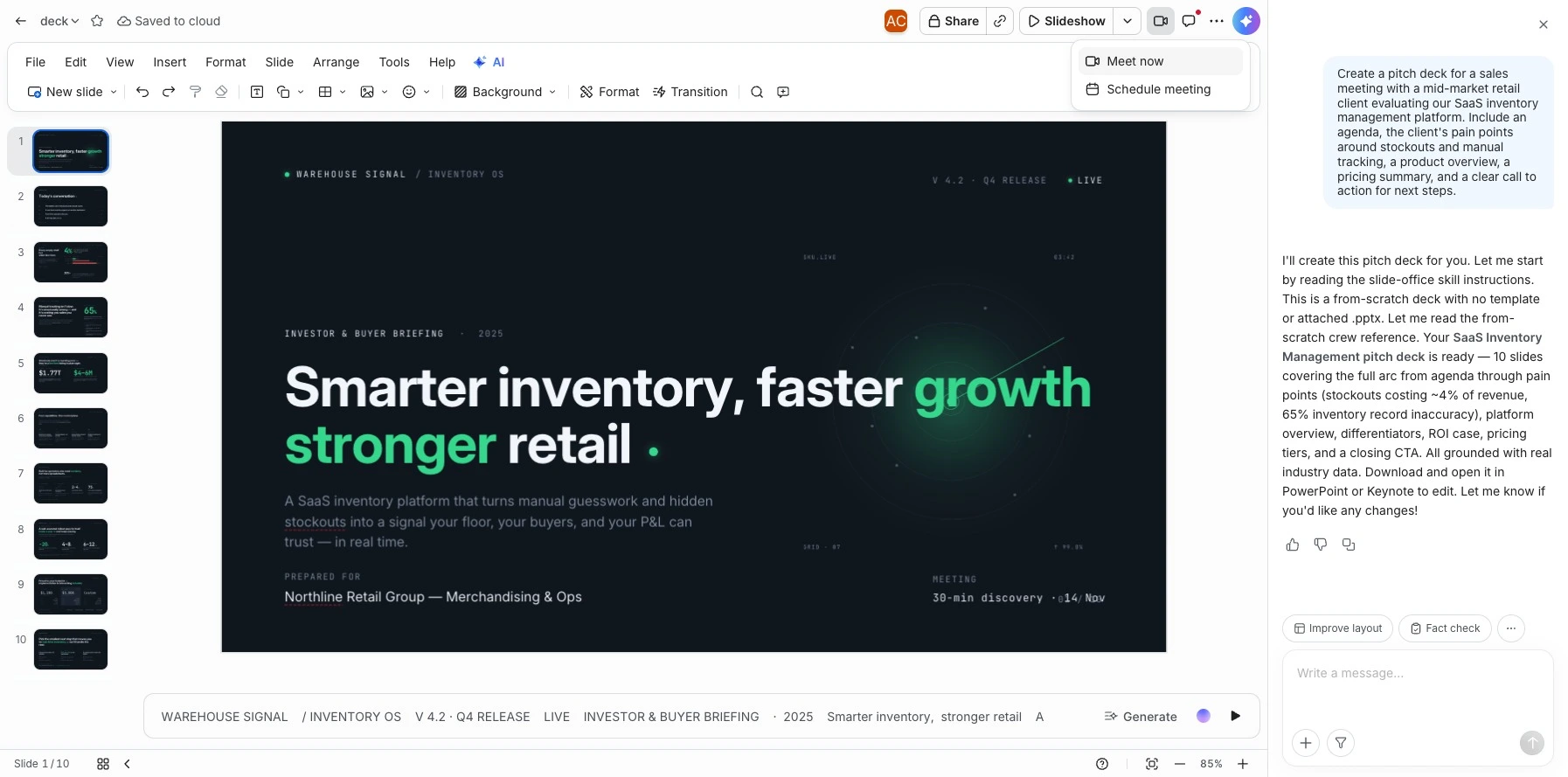
A separate video-camera icon in the same toolbar opens a “Meet now” and “Schedule meeting” menu, which is the direct entry point for presenting the deck inside a Zoom meeting without leaving Zoom Slides to find it.
Frequently Asked Questions
Is PowerPoint still the best presentation software?
For organizations standardized on Microsoft 365 and dependent on .pptx as the default deliverable format, PowerPoint remains a dependable default. It isn’t the fastest way to get from a rough idea to a finished deck, which is the gap AI-native tools and meeting-connected generators like Zoom Slides are built to close.
What’s the best free presentation software?
Google Slides and several AI-native tools, including Gamma and Canva, offer free or limited-access options for collaborative editing or AI generation. Feature access and export limits vary by provider.
Do you need a Zoom account to use Zoom Slides?
Zoom Slides is part of the Zoom AI Productivity Suite. AI generation access and usage limits vary by account and plan.
Does Zoom Slides only work from a live meeting, or can it start from a document or prompt too?
It works from any of the three. The same starting point that accepts a meeting recording or transcript already sitting in Zoom Hub also accepts an uploaded document or a written prompt, which is the path used throughout the walkthrough above.
Does Zoom Slides export to a file you can keep editing in PowerPoint?
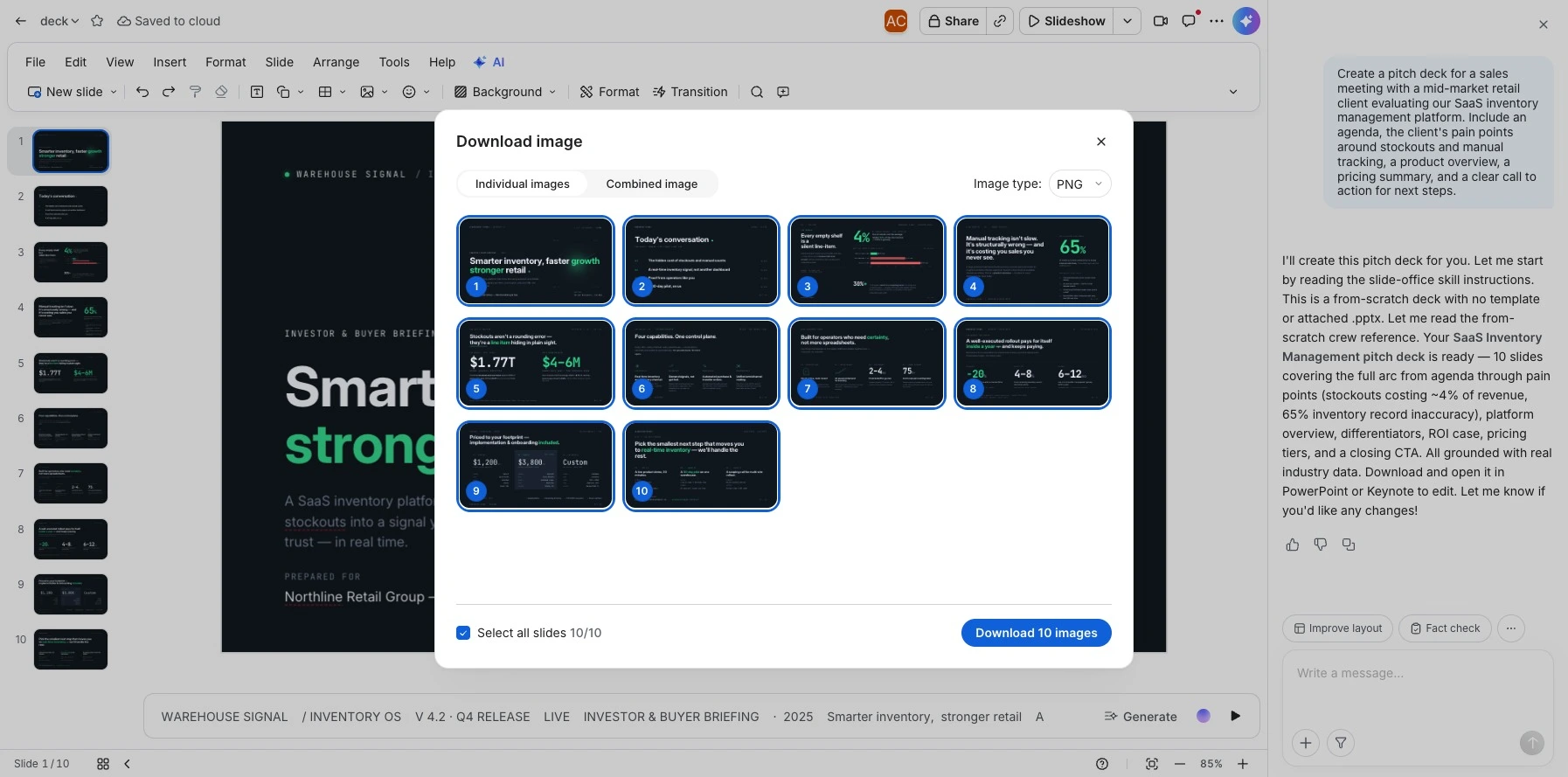
Yes. The File menu includes options to export as .pptx, PDF, or image, in addition to continuing to edit the deck inside Zoom Slides itself. The image export option opens its own dialog for choosing PNG or JPG, downloading each slide as an individual image or as one combined image, and picking which slides to include. Fonts, layouts, charts, animations, and other complex elements may vary in .pptx conversion, so review the exported deck in PowerPoint before use.
When does it make more sense to stick with PowerPoint, Google Slides, or an AI-native generator instead?
If most of your team’s planning and client conversations don’t happen in Zoom meetings, or if you need a fully free tool with no account tied to a broader suite, PowerPoint, Google Slides, or a dedicated generator like Gamma will likely fit better. Zoom Slides is built for the specific case where the deck already started as a Zoom conversation.